
Knowledge Base
Articles In This Section
What Are Quickbase Dashboards Set Up Personalized Dashboards Using User-Filtered ReportsHow to Create a Dashboard in QuickbaseEmbedding an I-Frame (Webpage Widget) in a Dashboard | BEGINNERHow and When to Use Calculated Columns for Quickbase Reports How to Create Summary Report in Quickbase Utilizing the Dashboard Side Bar | BEGINNERHow to Build an Operations Dashboard in Quickbase | INTERMEDIATE to ADVANCEDHow to Color-Coding Rows for Quickbase Reports Using Automations to Log Approval Time and User in QuickbaseHow to Create External Stakeholder Forms, Reports, and Dashboards in QuickbaseOrganizing & Assigning Groups To Reports | BEGINNERLinking Dashboards Together | BEGINNERSetting Up Report and Chart Types in Quickbase | BASICSUsing Rich Text to make your Dashboard Pop | BEGINNERUsing Report Formulas as a Filter in a Report in QuickbaseKanban Reports | BEGINNERHow to Create an Audit or Change Logs with Automations Understanding and Setting Up Subscription Emails in Quickbase Create Audit/Change Logs with Automations | INTERMEDIATEHow to Set Up Pie Reports in Quickbase How to Build Standard Reports in Quickbase | BEGINNERAdding Reports to Dashboards | BEGINNERSections
Updating the Default Table Home Page and Default Report Columns | BEGINNER
BACKGROUND
In an app, when a user navigates to a table, they are taken to the table home page. Initially, Quick Base displays the ‘Default report’; it is automatically created for each table in a Quick Base application. Initially, it is a ‘list all’ report that displays the default report columns and dynamic filters.
The default columns, dynamic filters, and report can be adjusted to suit the needs of the users by following the directions below.
NAVIGATION
To customize the default table home page, report columns, and dynamic filters:
A. Navigate to the Table Home Page
B. Click ‘Customize this Page’
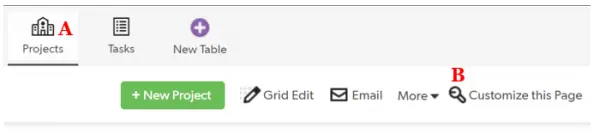
CHANGING THE DEFAULT TABLE HOME PAGE
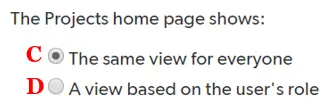
Originally, the default report will show for all users. However, the report that displays on the table home page can be changed. It can be the same report for all users or a different report for each role. If you want the report on the table home page to be the same for every user, irregardless of role, then select, the ‘The same view for everyone’ radio button (C); if you want the report on the table home page to be different based on the user’s role, then select, the ‘A view based on the user’s role radio button (D).
To change the report that displays on the table home page, click the dropdown in the ‘View’ column and select the desired report (E).

CHANGING THE DEFAULT TABLE REPORT COLUMNS AND DYNAMIC FILTERS
The default report columns and dynamic filters can be edited by clicking on the hyperlink, ‘Default report settings’ (F above). Or following the path: table -> settings -> reports and charts -> reporting defaults -> default report settings.
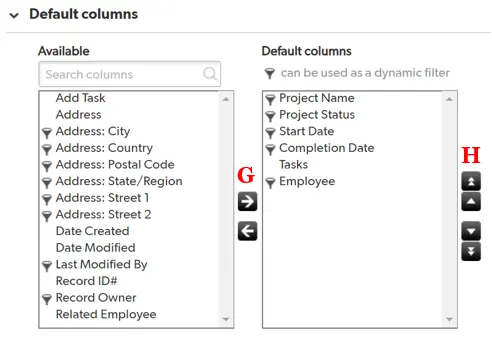
The first section of the settings page is ‘Default Columns’. Columns can be added by selecting the field you want to add from the ‘Available’ box; they can be subtracted by selecting the field you want to remove from the ‘Default columns’ box and clicking the arrows (G). The arrows (H) to the right of the boxes change the order of the default columns.
The radio buttons below the column boxes allow you to choose how new fields added to a table will be treated (I).
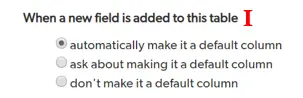
✓ When fields are added and ‘automatically make it a default column’ is checked, then the new fields will become default columns,
✓ If ‘ask about making it a default column’ is checked, then the user will have the option to make or not make the new fields default columns,
✓ If ‘don’t make it a default column’ is checked, then the new fields will not become default columns.
The default dynamic filters can be customized or not shown on the default report (J). A report is limited to five dynamic filters.
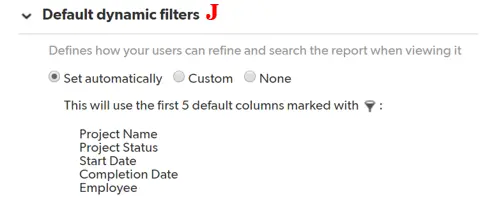
✓ If ‘Set automatically’ is checked, then the first five, filterable, fields will become the default dynamic filters,
✓ if ‘Custom’ is selected, then the user can choose the dynamic filters (similar to choosing default columns G and H),
✓ if ‘None’ is selected, then the report will have no dynamic filters.
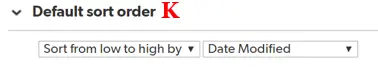
Finally, the order of the records can be customized by changing the field in the ‘Default sort order’ section (K).
To learn how to display your reports on dashboards, check out the article, Adding Reports to Dashboards.
- Author: TJ Lawless
- Email: tlawless@quandarycg.com
- Date Submitted: 1/3/2018


Resources


© 2026 Quandary Consulting Group. All Rights Reserved.
Privacy Policy