
Knowledge Base
Articles In This Section
How to Create a Code Page in Quickbase What is Quickbase and Who Are Their PartnersHow to Create Multiple Records in a Quickbase Join Table How to Navigate and Manage Quickbase Apps from the Quickbase 'My Apps' PageHow to Manage and Delete Reports in QuickbaseHow to Use Application Diagram in Quickbase Copying Quick Base App ComponentHow to Create Cross-App Relationships in QuickbaseWhat is a Many-to-Many Relationships in QuickbaseChanging The Record Title Seen On Forms BeginnerMany-to-Many Relationships in QuickbaseSections
How to Create a Reminder in Quickbase
Quickbase Reminders are automated email notifications that help users stay on top of important dates, tasks, and workflows. These reminders are sent to registered Quickbase users within your realm and can be triggered by date-based rules or custom conditions.
With flexible filtering options, Quickbase reminders allow you to send targeted messages based on criteria like due dates, task status, or assigned users.
How Do Quickbase Reminders Work
Quickbase reminders function by sending automated email reports when specific conditions are met.
You can configure reminders to:
- Trigger on a specific date or time
- Send before or after a deadline
- Filter records by status, user, or custom fields
- Notify individuals or groups within your Quickbase environment
Each reminder includes a report of records that match your defined criteria, making it easy to track progress and take action.
Common Use Cases for Quickbase Reminders
Quickbase reminders are highly versatile and can support a wide range of business processes, including:
- Project management: Notify project leads when tasks are overdue
- Employee onboarding: Ensure new hires complete required steps on time
- Event tracking: Alert teams about upcoming deadlines or milestones
- Task accountability: Remind users of pending or incomplete work
Why Use Quickbase Reminders
Using Quickbase reminders helps improve task tracking, accountability, and workflow efficiency.
Key benefits:
- Reduces missed deadlines
- Keeps teams aligned on priorities
- Automates follow-ups and notifications
- Improves visibility into critical tasks
Reminders are especially useful when timing matters. If a task or event does not depend on a specific date or timeframe, reminders may not be necessary.
Limitations of Quickbase Reminders
Before setting up reminders, keep these constraints in mind:
- Admin permissions required: Only users with full admin access can create or edit reminders
- User restrictions: Reminders can only be sent to registered Quickbase users
- Email-based only: Notifications are delivered via email, not in-app alerts
How to Create a Reminder in Quickbase
You can create an automatically emailed Quickbase reminder to your specifications in 9 steps.
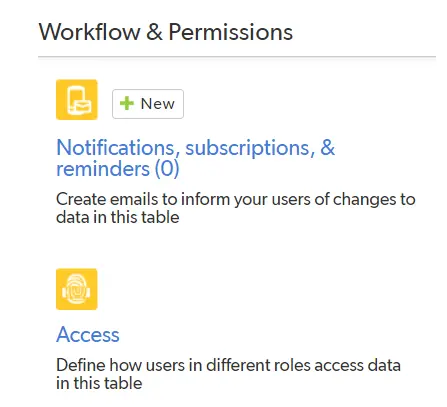
Step 1: Select the table from the table bar that contains the date field you want to use for the reminder. Click Settings. Then, click + next to Notifications, subscriptions, & reminders.
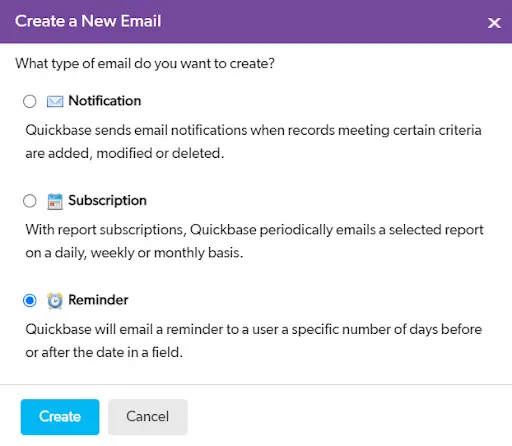
Step 2: Select Reminder, then click Create.
Step 3: In the Reminder Name text box, enter a name for the reminder.

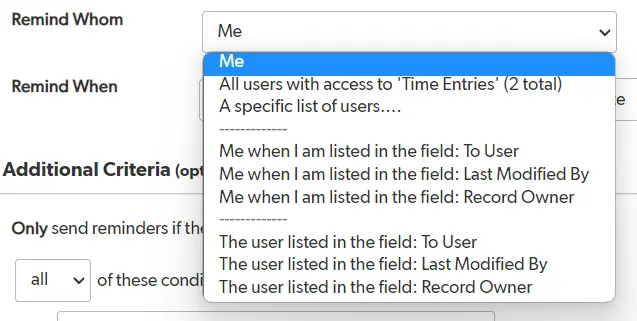
Step 4: Select recipients from the Remind Whom list:
- Me: Send the reminder only to you.
- All users with access to <table name>: Sends the reminder to all users with access to the table.
- A specific list of users: Sends the reminder to a specific set of users or groups.
- Type the email addresses, user names, or group names of registered Quickbase users.
- Separate the entries using a semicolon, comma, or by entering each user/group on a separate line.
- Click the “Browse Users” button to select users with the ”User Picker”.
- Email addresses are pasted into the field as text. If the email address changes, you must update the reminder manually.
- Me when I am listed in the field <name>: Quickbase lists this choice for each user field in the table. If you want Quickbase to send the reminder to you only when you are the user listed in a specific user field, select this option where the field name is the one you want.
- The user listed in the field name: Sends the reminder to all users listed in a particular user or list-user field. For example, you can let team members know their assigned tasks have changed (or whatever record change or changes you choose in the next step). To do so, select the option for the assigned field.
Step 5: On the Remind When line, use the following options to set up when you want to send the reminder:
- Enter the number of days before or after the date that Quickbase will send the reminder.
- Select Before or After from the list to the right of Days.
- Select the field you based the reminder on from the date in the field list. For example, Finish Date or Start Date.

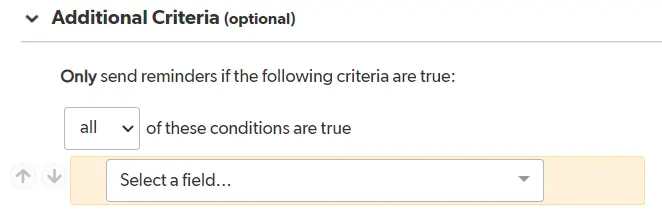
Step 6: Optionally, under Additional Criteria, set up a filter to specify conditions that send a reminder.
- For example, you may want to specify that Quickbase sends a reminder if the status is ”Incomplete”.
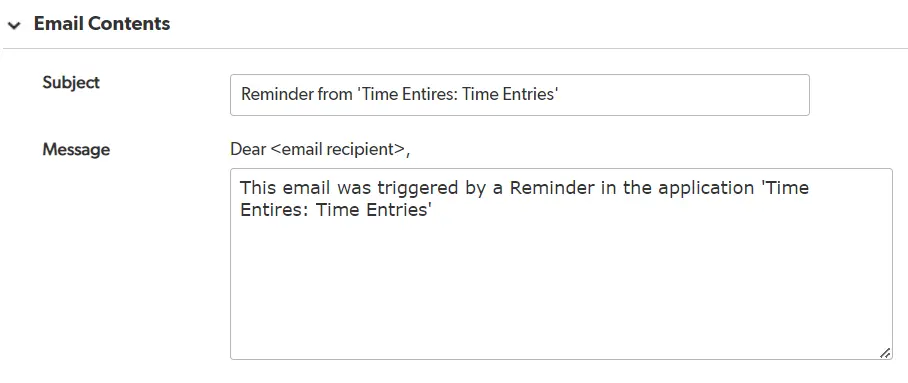
Step 7: Optionally, type your Subject and Message to customize the email. If you like the text that Quickbase provides, make no changes.
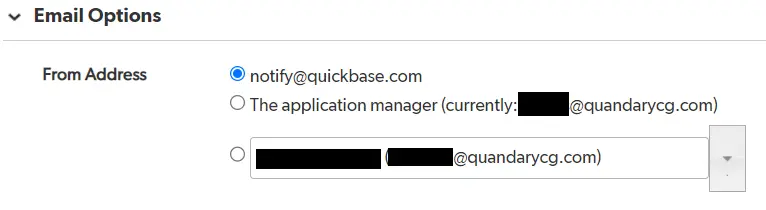
Step 8: Under Email Options, choose the email address you will send the reminder from:
- notify@quickbase.com
- The application manager (your email address)
Step 9: Click Preview on the Page bar to view the email before you save it, then click Save.
To see more How-To guides about Quickbase Development, please visit our Quickbase Knowledge Base
FAQs about Setting Up Reminders in Quickbase
1. What are Quickbase reminders?
Quickbase reminders are automated email notifications sent to users within a Quickbase app based on date triggers or custom conditions. They include a report of records that meet the defined criteria, helping teams track tasks and deadlines.
2. How do Quickbase reminders work?
Quickbase reminders work by sending scheduled or condition-based email alerts. Admins configure reminders to trigger when:
- A specific date is reached
- A deadline is approaching or overdue
- A record meets certain conditions (e.g., status = “Open”)
Each reminder sends a report of matching records to selected users.
3. Who can create Quickbase reminders?
Only users with full admin access in a Quickbase app can create or edit reminders. This ensures proper control over automated notifications and data visibility.
4. Who can receive Quickbase reminders?
Quickbase reminders can only be sent to registered users within the same Quickbase realm. External email addresses are not supported.
5. Can Quickbase reminders be triggered without a date?
Yes. While many reminders are date-based, Quickbase reminders can also be triggered using custom conditions, such as:
- Record status
- Assigned user
- Field values
6. What are Quickbase reminders used for?
Quickbase reminders are commonly used for:
- Tracking project deadlines
- Notifying users of overdue tasks
- Managing employee onboarding steps
- Sending alerts for upcoming events
They help improve accountability and ensure timely task completion.
7. What are the benefits of using Quickbase reminders?
The main benefits of Quickbase reminders include:
- Automated task tracking
- Improved team accountability
- Reduced missed deadlines
- Streamlined communication through email alerts
8. When should you use Quickbase reminders?
Use Quickbase reminders when managing time-sensitive tasks, deadlines, or workflows. They are most effective when timing and follow-up are critical to business processes.
9. When should you NOT use Quickbase reminders?
You should avoid using Quickbase reminders when:
- Timing is not important
- The process does not rely on deadlines
- Real-time or in-app notifications are required instead of email
10. Do Quickbase reminders send reports?
Yes. Every Quickbase reminder sends a report of records that match the defined filters and conditions, giving users actionable insights directly in their inbox.
11. Can Quickbase reminders notify multiple users?
Yes. Quickbase reminders can be configured to notify multiple users or roles, as long as they are registered within the Quickbase realm.
12. Are Quickbase reminders customizable?
Yes. Quickbase reminders are highly customizable. You can:
- Filter records using conditions
- Choose recipients
- Set timing (before, on, or after a date)
- Customize the report being sent
- Author: April Barragan
- Title: Solution Consultant | Quickbase
- Email: abarragan@quandarycg.com
- Date Updated: 03/23/2026


Industries
Resources


© 2026 Quandary Consulting Group. All Rights Reserved.
Privacy Policy